
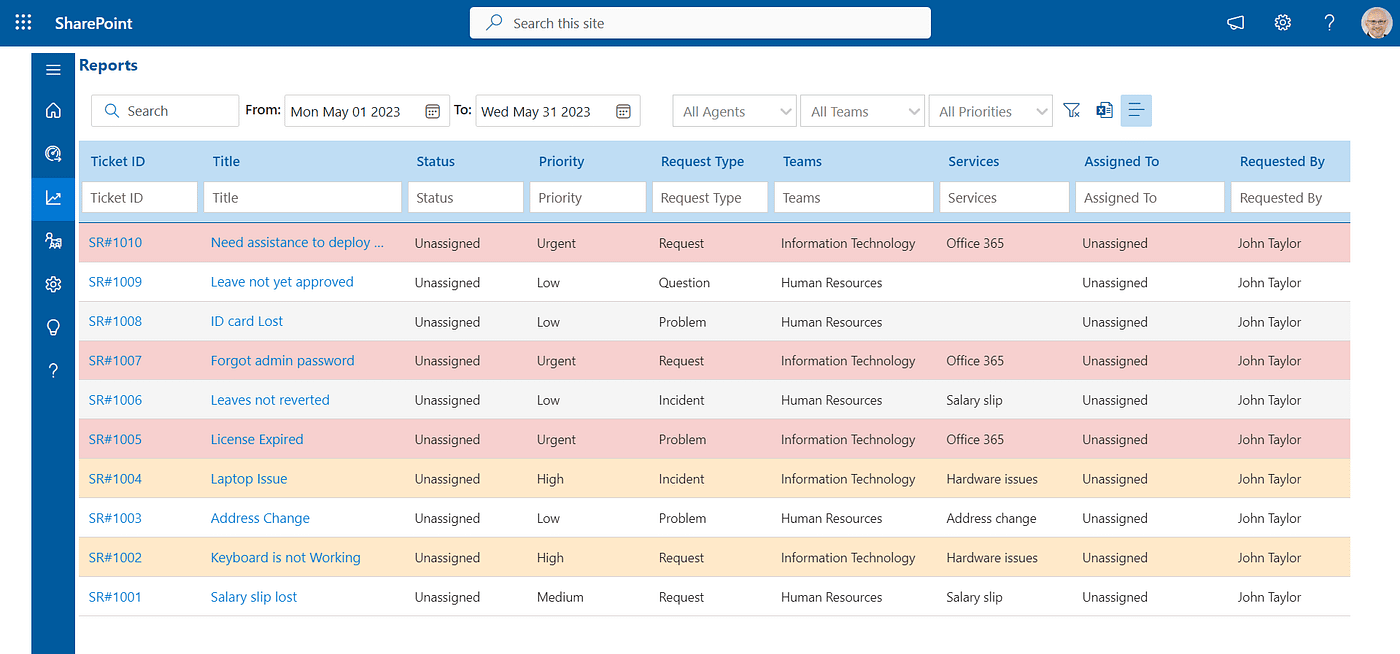
You’re about to take the first step in streamlining your organization’s support system by setting up a helpdesk in SharePoint. You’ve got a general idea of what you want to achieve, but you’re not quite sure where to start or how to get everything up and running. That’s okay – you’re in the right place. By the end of this guide, you’ll have a fully functional helpdesk that’ll make your support team more efficient and your end-users happier. But first, let’s lay the groundwork. What are your top priorities for your helpdesk, and what kind of support will you offer?
Setting Up the Foundation
Get ready to lay the groundwork for your helpdesk by establishing a clear purpose and defining the scope of your support team.
This foundation is crucial, as it sets the tone and direction for your entire helpdesk operation.
Start by identifying the primary goals and objectives of your team.
What kind of support will you offer?
What types of issues will you handle?
The more specific you are, the better equipped you’ll be to tackle the tasks ahead.
Next, define the scope of your support team.
Who’ll be part of the team?
What roles will they play?
Establishing clear roles and responsibilities will help prevent confusion and ensure that tasks are completed efficiently.
You should also determine the communication channels you’ll use and the protocols for escalating complex issues.
Configuring Ticketing System
With your support team’s foundation in place, you’re ready to implement a ticketing system that streamlines issue tracking and resolution.
This system will serve as the backbone of your helpdesk, allowing you to manage and resolve issues in a timely and efficient manner.
To set up the ticketing system, navigate to your helpdesk site and click on the “Lists” tab.
From there, click on “Issue Tracking” and then click on “Issue Tracking Settings.”
In the “Issue Tracking Settings” page, you’ll see options to configure the ticketing system, including setting up custom fields, assigning permissions, and defining workflows.
Take your time to carefully configure each setting, as this will determine how your ticketing system functions.
Once you’ve configured the ticketing system, you’ll be able to create new tickets, assign them to team members, and track their status in real-time.
This will enable your support team to respond to issues quickly, reducing resolution time and improving customer satisfaction.
Creating Custom Views
Your ticketing system is now set up, and you’re ready to start tracking and resolving issues.
Custom views help you organize and prioritize tickets based on specific criteria, making it easier to manage your helpdesk.
Let’s create a custom view for open tickets assigned to a specific team member.
Go to your ticketing list and click on the “Views” dropdown. Click “New View” and give your view a name, such as “Open Tickets Assigned to John.”
Under “Filter,” choose the criteria “Equals” and select the column “Assigned To.” Then, select the team member you want to filter by.
Under “Sort,” choose the column “Created” and select “Ascending” to show the oldest tickets first.
Click “OK” to save your view.
Your custom view is now available in the “Views” dropdown.
You can create multiple custom views based on different criteria, such as priority, status, or categories.
This helps you and your team to quickly identify and focus on specific tickets that require attention.
Defining Workflow Rules
Several workflow rules can automate and streamline your helpdesk processes, saving you time and reducing errors.
You’ll want to define rules that trigger specific actions when certain conditions are met. For instance, you can set up a rule that automatically assigns a new ticket to a specific team or individual when it’s submitted.
This ensures that the right people are notified and can start working on the problem promptly.
You can also define rules that update ticket statuses, send notifications, or even create new tasks.
To define a workflow rule, navigate to your SharePoint site and click on “Site Settings.”
From there, click on “Workflow” and then “Workflow.”
Give your workflow a descriptive title and select the list or library you want the workflow to apply to.
Then, define the trigger and conditions for the workflow.
You can choose from a range of pre-built conditions, like “when an item is created” or “when a field changes.”
Once you’ve defined the action you want to occur, click “Save” to save your workflow rule.
Testing and Deployment
Every helpdesk setup requires thorough testing to ensure that all components, including workflow rules, function as intended.
You’ve put in the effort to define your workflow rules, and now it’s time to see how they perform in a real-world environment. Start by creating a few test tickets and walk them through the entire lifecycle, from submission to closure.
Verify that your workflow rules are triggering correctly and that your notifications are being sent to the right people. Don’t be afraid to test the system’s limits – try submitting tickets with missing information or incorrect categorization to see how the system handles errors.
Once you’re confident that everything is working as intended, it’s time to deploy your helpdesk to the rest of the organization.
Make sure to communicate the benefits and functionality of the helpdesk to your end-users, and provide them with any necessary training or documentation.
With your helpdesk up and running, you’ll be able to track and manage issues more efficiently, and ultimately improve the overall customer experience.
Conclusion
You’ve successfully set up a SharePoint ticketing system in SharePoint! You’ve established a solid foundation, configured a ticketing system, created custom views, defined workflow rules, and tested the system. Now, deploy it to the rest of the organization and communicate its benefits and functionality to end-users. With this helpdesk, you’ll be able to efficiently manage and resolve issues, improving overall productivity and user satisfaction.